
When you add a new column to your data source, it won’t automatically appear in the report designer when Power BI refreshes the dataset. To see the new column in the report designer, you’ll need to go into the Query Editor, select the dataset, and refresh the preview. Once you do this, the new column will be available in the report designer.
Steps to add a new column to datasource:
- Go to Transform Data and select transform data option

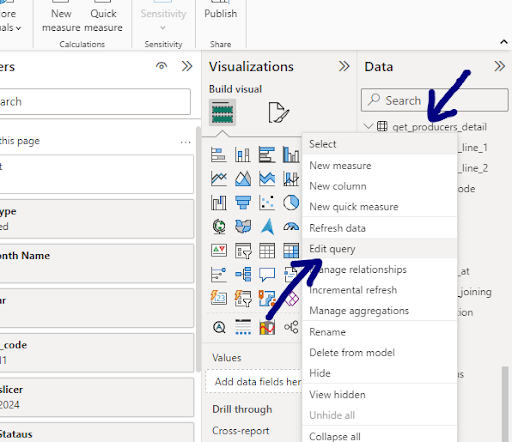
Or In Power BI Desktop, right-click on your dataset under Fields (‘get_producer_details’ in this case), and select Edit query.
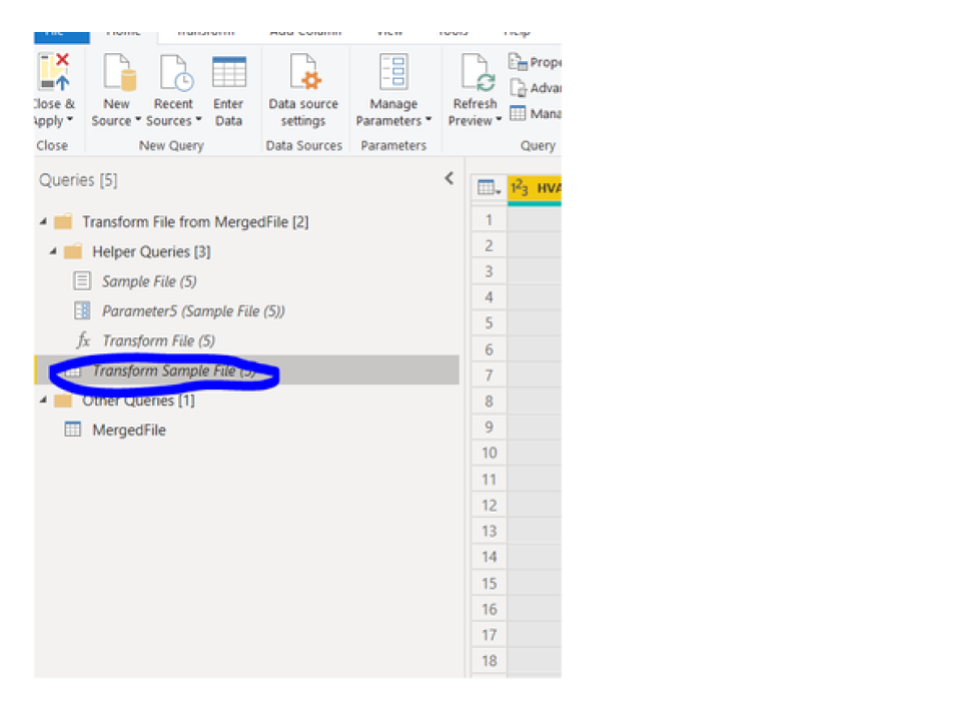
- On the left-hand side, locate and select “Transform Sample File.”
OR you can go to the Power Query Editor, select Advanced Editor:
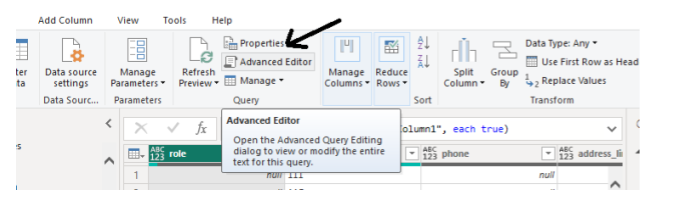
After that, Select the advanced editor on top center and you should see something like this. and simply increase the number of columns your sample file can possibly contain.

Note: If you set this value to a number larger than the number of columns in your dataset, you will end up with empty columns.
However, setting Columns=null will automatically import all columns from your source, even as the source changes.
After making this adjustment, refresh the preview to see the new column appear in the Power BI dataset display.







Leave A Comment